4 posts tagged with "Looker"

View All Tags

Developer's Guide to Cookieless Embedding

· 7 min read

This guide is designed to walk you through Looker's Cookieless Embed logic, the "gotchas," and the architecture without getting bogged down in code syntax. You can find the nitty-gritty details in Looker's official documentation and in the package. If you would like lkr.dev to work on a code sample in your backend or frontend of choice, feel free to reach out here.

Stop. Do you think you really need this?

Before we dive in, let’s make sure you aren't over-engineering. Cookieless embedding is robust, but it requires significantly more development effort (backend API endpoints, token management, caching) than the standard method.

You should stick to Standard Signed Embedding with a Custom Domain if:

  1. You control the domain where Looker is embedded (e.g., your portal is portal.mycompany.com). And...
  2. You can set up a custom domain (e.g., analytics.mycompany.com) on Looker Core or by reaching out to your Account Manager for Looker hosted.

Why? If the top-level domains match (both end in mycompany.com), browsers treat Looker's cookies as "first-party." They won't get blocked, and you don't need to build complex token management.

You absolutely need Cookieless Embedding if:

Your embedding application is hosted across multiple, disparate domains that you do not fully control (e.g., a SaaS product with customer-a.com and customer-b.com domains), making a custom Looker domain impractical.

Before you begin, you should familiarize yourself with the following links:

Test first with the demo application

Before you start building your own Looker embed, we strongly recommend running the Looker Embed SDK Demo Application. It’s the fastest way to verify that your Looker instance is correctly configured for cookieless embedding. We recommend getting at least one dashboard up and running with the following steps.

Step 1 - Enable Cookieless Embedding in your Looker instance

Navigate to Admin > Platform > Embed on your Looker instance. This requires Admin privileges.

  1. Enable Cookieless Embed: Toggle this setting to On.
  2. Embed SSO Authentication: Ensure this is also enabled if you plan to use signed features.
  3. Embedded Domain Allowlist: The demo server runs by default at http://localhost:8080. Add this address to the allowlist to enable the demo to receive messages from Looker.

Step 2 - Customize the Demo Settings

The embed demo environment is configured using a .env file in the root of the repository. Create this file and add the following cookieless-specific configuration:

# Looker Instance Configuration
LOOKER_WEB_URL=mycompany.looker.com
LOOKER_API_URL=https://mycompany.looker.com

# API Credentials (from Admin > Users > API3 Keys)
LOOKER_CLIENT_ID=your_client_id
LOOKER_CLIENT_SECRET=your_client_secret

# Embed Configuration
LOOKER_EMBED_TYPE=cookieless
LOOKER_DASHBOARD_ID=123

Next, customize the embedded user's identity and permissions by editing demo/demo_user.json. This file defines the profile Looker will use for the cookieless session. Key fields include:

  • external_user_id: A unique ID for the user in your system.
  • permissions: Roles like access_data, see_looks, explore, see_user_dashboards, see_lookml_dashboards.
  • models: The LookML models this user is allowed to access.

Step 3 - Build and Run

Clone the repo and run the following commands from the top-level embed-sdk directory:

npm install
npm run server

The server will listen on http://localhost:8080.

Step 4 - Verify in the UI

Once the app is running:

  1. Open your browser to http://localhost:8080.
  2. Ensure the "Use cookieless" radio button is selected.
  3. Click "Run".

This will initiate the cookieless handshake and load the Looker content into the iframe. Success here confirms your Looker instance permissions and domain allowlists are correctly configured! Now you should start integrating it into your own application.

The Tokens

Looker uses a number of client safe and client secret tokens to authenticate cookieless embedding. The importance of each token is described below, however ignorance is bliss. You can get away with not understanding the tokens and still have a successful implementation, but it's good to know what's happening under the hood when you get stuck. When implementing cookieless embedding, we strongly recommend using the @looker/embed-sdk to handle the most of the token management for you on the client.

Understanding the Tokens

The token handshake is the core of the cookieless embedding process. It's the mechanism that enables the embedding application to authenticate with Looker and obtain a token to access the Looker API.

The token handshake is a two-step process:

  1. The embedding application requests a token from the Looker API.
  2. The Looker API returns a token to the embedding application.

The token handshake is a secure process that uses a shared secret to authenticate the embedding application with Looker.

The Session Reference Token

This is the most critical piece of the puzzle. Think of the Session Reference Token exactly like a Refresh Token in OAuth/JWT flows. It is a Secret. If someone gets this token, they are that user. They can generate new sessions and access data as that user. Treat it as a secret and avoid sending it to the client (browser). In most scenarios, the client (browser) doesn't need it and your backend should receive it from Looker, store it securely, and use it only to communicate with the Looker server via server-to-server.

There are exceptions for sending it to the client, for example if you are avoiding storing in your backend. If so it's a secret and you will need to re-use it, therefore encrypt it before sending it to the client.

Its expiration is controlled by the session_length parameter in the acquire_embed_cookieless_session API call, which defaults to 5 minutes and can be set to a maximum of 30 days.

All Token Descriptions

Token TypeDescription
Session Reference TokenThis is the most critical piece of the puzzle. Think of it exactly like a Refresh Token in OAuth/JWT flows. It is a Secret. If someone gets this token, they are that user. They can generate new sessions and access data as that user. Treat it as a secret and avoid sending it to the client (browser). In most scenarios, the client (browser) doesn't need it and your backend should receive it from Looker, store it securely, and use it only to communicate with the Looker server via server-to-server. Its expiration is controlled by the session_length parameter in the acquire_embed_cookieless_session API call, which defaults to 5 minutes and can be set to a maximum of 30 days.
Navigation TokenAdd this to the iframe URL. It allows the user to load pages and click links within Looker. These are short-lived (typically 10 minutes or less), which limits the blast radius if intercepted.
API TokenThe Looker Embed SDK uses this to fetch chart data. These are short-lived (typically 10 minutes or less), which limits the blast radius if intercepted.
Authentication TokenA one-time-use token (valid for only 30 seconds) used strictly to start the session. These are short-lived (typically 10 minutes or less), which limits the blast radius if intercepted.

Don't forget your user agent.

The User Agent is a critical component of session security when using Looker's cookieless embed. Please ensure it is transmitted correctly from your browser to your backend and then to the Looker API. The user agent is used to match the browser iframe URL to the session reference token. If the user agent is not passed correctly, the iframe will not load. Cookieless Embedding Troubleshooting for more information on how to determine whether this is the issue with your embedding

Cookieless Embedding Troubleshooting

· 4 min read

If you haven't already, please see the Cookieless Embedding Guide for a high-level overview of cookieless embedding and how it's supposed to work. Most cookieless embed issues are resolved by the following:

  1. Make sure Cookieless Embedding is enabled in your Looker instance in Admin > Platform > Embed
  2. Use @looker/embed-sdk on your frontend so that it can handle all token passing to the Looker iframe
  3. Make sure your endpoints that use acquire_embed_cookieless_session and generate_tokens_for_cookieless_session are passing the user agent from your application backend to the Looker API request
  4. Your application's domain is in Looker's Embedded Domain Allowlist
  5. Look at each entry of the Embedded Domain Allowlist and make sure none of them end with a trailing slash

You can use the below as a specific troubleshooting guide.

Common Issues

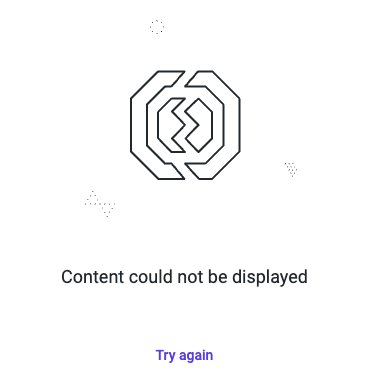
Content cannot be displayed (with Try Again button)

Content cannot be displayed (try again button)

Content cannot be displayed (without the Try Again button)

Content cannot be displayed

No embed_domain query parameter

Could you open up your iframe URL and check for the embed_domain query parameter? It should match the domain in which the iframe is loaded (window.location.origin).

targetDomain is not allow listed

Check the browser console for the following error:

Domain check failed: targetDomain is [your embed domain]. Verify domain has been allow listed in the embed admin page.

See Embedded Domain Allowlist for more information. Also, most browsers will copy and paste your url with a trailing slash, the embed domain should not have a trailing slash; be carefuly when copy pasting.

Missing or Misconfigured User Agent

The user agent is an important component of the session security. Ensure it is passed correctly from your backend to the Looker API.

The most likely cause is that you are re-using the values from a cached session and your TTL's are not properly passed to Looker. Looker will emit the session:tokens:request Post Message event when the ttl's are within 60 seconds of expiring. If you are using a cached value (not directly from the Looker API) you will need to re-calculate the TTL's and pass them to Looker.

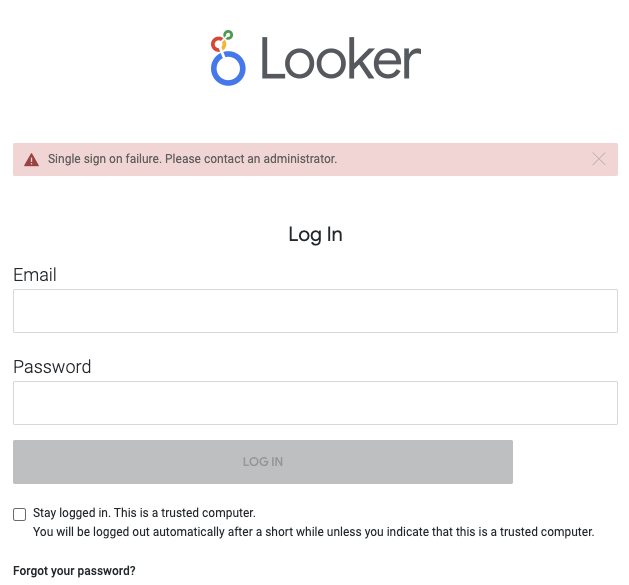
Single Sign-on failure

Single Sign-on failure

/login/embed/ 302's to /login

The most likely cause is that you are not passing through the User Agent from your application backend to Looker in the acquire_embed_cookieless_session API call. When Looker tries to load the iframe with the embed_authorization_token query parameter, it checks the User Agent.

Example javascript with @looker/sdk-node:

function acquireEmbedCookielessSession(
userAgent,
user,
session_reference_token
) {
return sdk.ok(
sdk.acquire_embed_cookieless_session(
{
...user,
session_reference_token,
},
{
headers: {
"User-Agent": userAgent,
},
}
)
);
}

Short-lived authentication tokens

Authentication tokens are short-lived (30 seconds) and are used to start an iframe session. If the authentication token is not used within the 30 second window, you will receive the Single Sign on failure.

Single use authentication tokens

Authentication tokens are single use and are used to start an iframe session. If the authentication token is used more than once, you will receive the Single Sign on failure.

Uncommon Issues

Changing user in acquire_embed_cookieless_session but the changes are not reflected in the iframe.

It's common for your application to want to change a user's permissions if you are monetizing different levels of persmissions of Looker embeds. You may run into a scenario where the changes you make to the user aren't immediately reflected in the iframe. This is most likely because you are re-using a session_reference_token from a cached value. If the session_reference_token is provided and the session has not expired, the embed user is not updated. This is done for performance reasons on Looker's backend. If you need to update the embed user in some way, you must generate a new session_reference_token and cache it's value.

Evolving Dashboard Navigation in Looker

· 4 min read

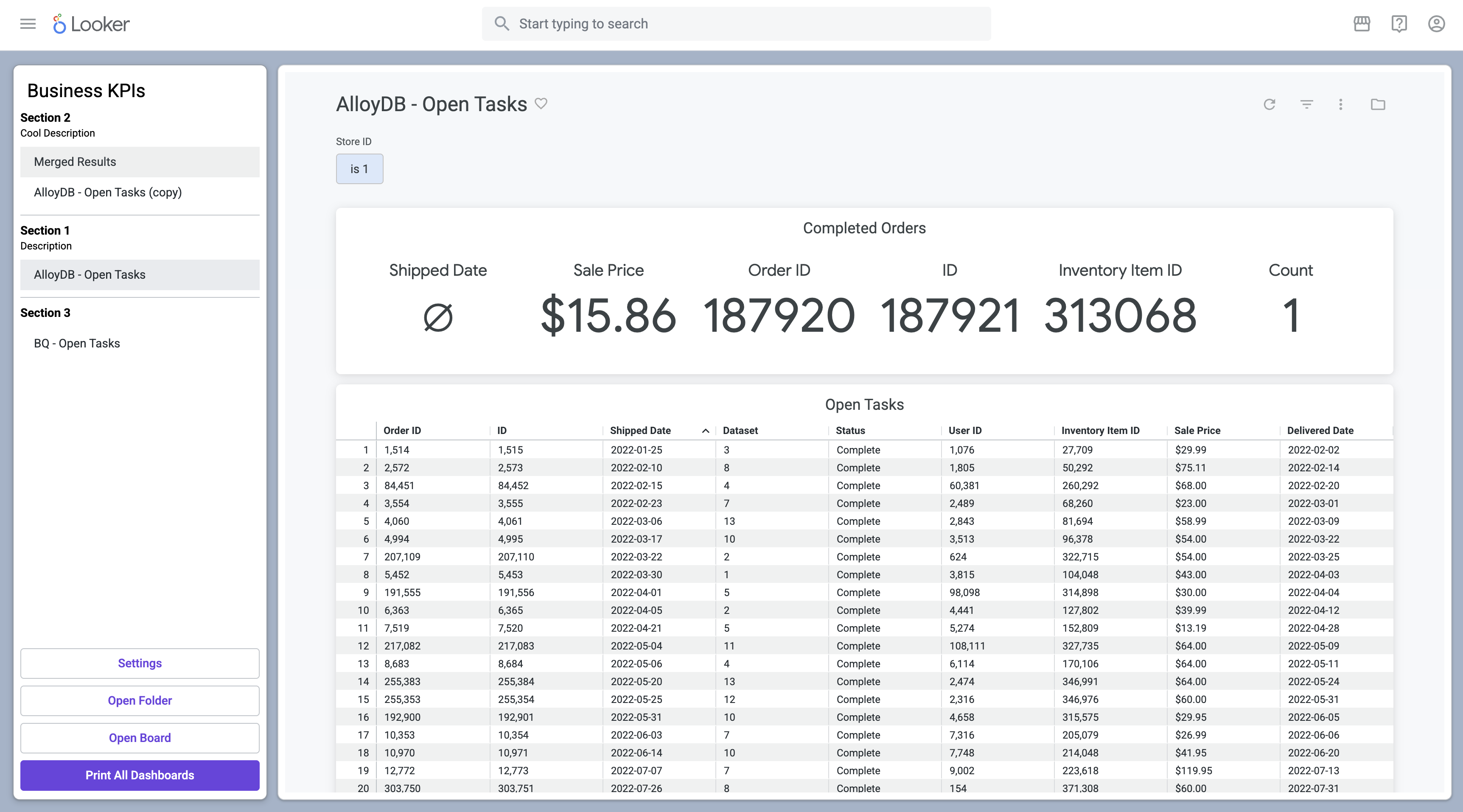
For Looker users and developers, the challenge of creating a truly integrated, multi-tabbed dashboard experience in Looker has long been a point of focus. This post details the progression from manual workarounds to a sophisticated, native solution leveraging the Looker Extension Framework. With an easy-to-install extension, anyone can create a multi-tabbed dashboard experience in Looker, either in a presentation-style format or ad hoc using folders and boards.

See the documentation and the repository

Markdown Tile HTML & Its Limitations

Historically, simulating tabs in Looker involved embedding custom HTML code within Markdown tiles on dashboards. This method created navigational links that directed users to entirely separate Looker dashboards.

Key technical drawbacks of this workaround included:

  • A fragmented user experience where each "tab" was a distinct dashboard, requiring full page loads and breaking user flow, despite appearing integrated. Other BI tools like QuickSight, Power BI, and Tableau typically offer this as a fundamental feature.
  • A crucial lack of filter persistence, meaning filters applied on one dashboard did not automatically carry over to linked dashboards, forcing manual re-application and disrupting analysis context. Some great hacks do exist for this use case
  • High maintenance overhead due to the necessity of copying and managing the same HTML code across multiple dashboards, increasing the potential for errors and maintenance burden.
  • Limited customization options, as HTML in Markdown tiles restricted dynamic behavior or deeper integration. This method was akin to basic website design. It was essential to use Markdown tiles, not Text tiles, for the HTML to work.

There have been a lot of noise feature requests (need access?) around this feature for a while.

Introducing lkr.dev Dashboard Tabs Extension

Dashboard Tabs Extension

The introduction of this extension represents a significant advancement in usability for Looker users. This extension is designed to reduce the complexity of building custom data applications by handling core web application functionalities such as hosting, authentication, authorization, and API access, allowing developers to focus on application-specific logic. Developing with the Extension Framework requires LookML developer permissions and the feature to be enabled by a Looker admin.

Technical Capabilities and Enhancements

The lkr.dev Dashboard Tabs extension offers a technically superior and more integrated experience by:

  • Seamlessly applying filters across multiple dashboards when filter names are consistent, which is critical for maintaining analytical context across different views. The extension dynamically updates global filters based on changes in the embedded dashboard's URL.
  • Supporting various methods for defining tab content, configurable through its settings:
    • Configuring specific dashboard IDs to display as default tabs.
    • Enabling browsing and navigating through Looker folders, accessing both personal and shared folders.
    • Enabling navigation through Looker boards and their sections, which displays only dashboards (not Looks or links) and respects board sorting.
  • Providing dynamic ad-hoc dashboard management, allowing users to add and remove dashboards on the fly without needing manifest configuration changes. It includes functionality to search for dashboards and convert ad-hoc collections into permanent Looker boards.
  • Leveraging a wide array of Looker API methods to support accessing tabbed dashboards through folders, boards, and default configurations.
  • Offering customizable theming, which allows for programmatic control over the extension's appearance. This includes setting personalized background colors and optimizing text color for readability using luminance calculations to ensure WCAG contrast compliance. These theme settings seamlessly apply across the entire extension interface and the embedded dashboards. There is also an option to hide the branded loading screen.
  • Facilitating advanced printing functionality for generating PDF exports of all configured dashboards in one operation, with currently applied filters maintained for comprehensive reports. This allows for simultaneous printing of multiple dashboards.
  • Providing URL persistence, where the state of the tabbed interface, including applied filters, can be saved and shared via URL, enabling users to return to a specific analytical view easily.

In summary, the lkr.dev Dashboard Tabs extension moves beyond superficial tab simulations, providing a deeply integrated and feature-rich navigation system for Looker dashboards directly within the Looker platform.

Securing Your Looker Extensions with Cloud Run: A Complete Guide

· 12 min read

Looker extensions provide a powerful way to extend your Looker instance beyond what the standard API offers. However, when your extensions need to connect to external services or run custom code, security becomes essential. This comprehensive guide covers how to securely integrate Looker extensions with Google Cloud Run, keeping your data and services protected.