8 posts tagged with "Looker"

View All Tags

Introduction to Looker Code Mode MCP

· 5 min read

Today we're introducing the lkr code-mode MCP server to allow your LLM to orchestrate all of Looker API's in a simple interface. The Model Context Protocol (MCP) is a great way to connect AI agents to external tools. But as agents connect to bigger APIs, we run into a big problem: context bloat. Looker actually tried to fix this by creating a trimmed-down version of its MCP that exposes only a few select APIs. But that's pretty limiting if you want to build complex workflows and those workflows require many back and forth tool calls. Code Mode flips this on the head, the LLM writes code to orchestrate the entire workflow in one go; that's why developers are moving towards Code Mode for these use cases.

Think of traditional MCP as requiring a separate phone call to a worker for every step of a project (e.g., "Check the file," "Now read the first line," "Now delete the file"). Code Mode is like sending the worker a short Python script that does all three steps in one go. It saves time, reduces miscommunication, and gets the job done much faster.

What exactly is Code Mode?

Normally, you have to feed the AI the full JSON schema for every tool you want it to use if you have an API with hundreds of endpoints, which eats up almost your entire token budget to explain what each tool does, leaving no room for the actual conversation. Instead of listing hundreds of separate tools, Code Mode gives the LLM a compact, typed interface (basically a small SDK). The AI writes a script (usually in Python or JavaScript) to do what it needs, then runs it in a secure sandbox (such as a V8 isolate or a Python sandbox).

Cloudflare and Anthropic have been pushing this pattern because it shifts the model from "calling tools one by one" to "writing code to get the job done."

Why is it better

  • You collapse a massive API into a tiny interface, which saves a ton of tokens. Cloudflare reported cutting its token usage by 99.9% when it tried this.
  • The agent can write loops, conditions, and process data all in one go, instead of ping-ponging back and forth with the LLM for every single step.
  • Running code is deterministic. It either works or it doesn't, making it much easier to debug than an LLM guessing which tool to call next.

How we built it at lkr.dev

We wanted to solve this token bloat problem and receive the full API and SDKs for Looker, so we built a Python-based MCP server called lkr code-mode.

Here is how it works under the hood:

  • Instead of giving the agent hundreds of Looker SDK methods, we give it exactly one: run_python_code(code: str).
  • The tool spins up the Looker SDK, finds all the available methods, and passes them into the sandbox as global functions.
  • We use the Monty sandbox to run the code, so it can't mess with your local filesystem or network.
  • We convert complex Looker objects into standard Python dictionaries so the script can handle them easily.
  • If the session expires, Code Mode automatically pops up the PKCE auth browser to refresh the token without failing the run.

Check out the full Code Mode Docs and the CLI README for setup details.

What Can You Do with Looker Code Mode?

With a full Python environment and access to the Looker SDK, you can build some pretty cool workflows. Here are a few ideas:

Instance Governance & Cleanup

  • The "Marie Kondo" Content Archiver: Automatically find and archive dashboards and Looks that haven't been viewed in over 90 days.
  • Orphaned Schedule Rescuer: Find scheduled emails where the owner's account has been disabled and reassign them to prevent silent failures.

Developer & Performance Tools

  • Dashboard Performance Profiler: Test the load time of every tile on a dashboard by running queries asynchronously to find bottlenecks.
  • LookML "Impact Radius" Analyzer: Search for all Dashboards and Looks containing a specific field before deleting or changing it.

Dynamic Automation & Alerting

  • Smart Escalation Router: Dynamically route alerts to managers based on data conditions and user attributes.
  • The "Morning Briefing" Generator: Create personalized daily digest dashboards on the fly and export them as PDFs.

Advanced Migrations & Syncing

  • Environment Synchronizer: Replicate folder structures, permissions, and roles from a staging instance to production.
  • Bulk Onboarding Machine: Onboard 100+ users in seconds from a CSV, setting up credentials, user attributes, and row-level security.

What others are saying

  • On Cloudflare, they've been talking a lot about this, showing how they use Code Mode to let agents use their massive API without hitting token limits.
  • On Reddit (r/ClaudeAI, r/LLMDevs), developers agree that this isn't replacing MCP, but rather making it actually usable for big projects. A lot of the discussion focuses on how to build secure sandboxes.
  • On Hacker News, the consensus is that LLMs are just better at writing code than trying to figure out complex JSON tool schemas.

The Bottom Line

Code Mode is a big deal for making AI agents actually useful for complex tasks. By letting them write code instead of just calling API endpoints one by one, we can work around token limits and build much more reliable automation.

Looker Embed with BigQuery OAuth

· 4 min read

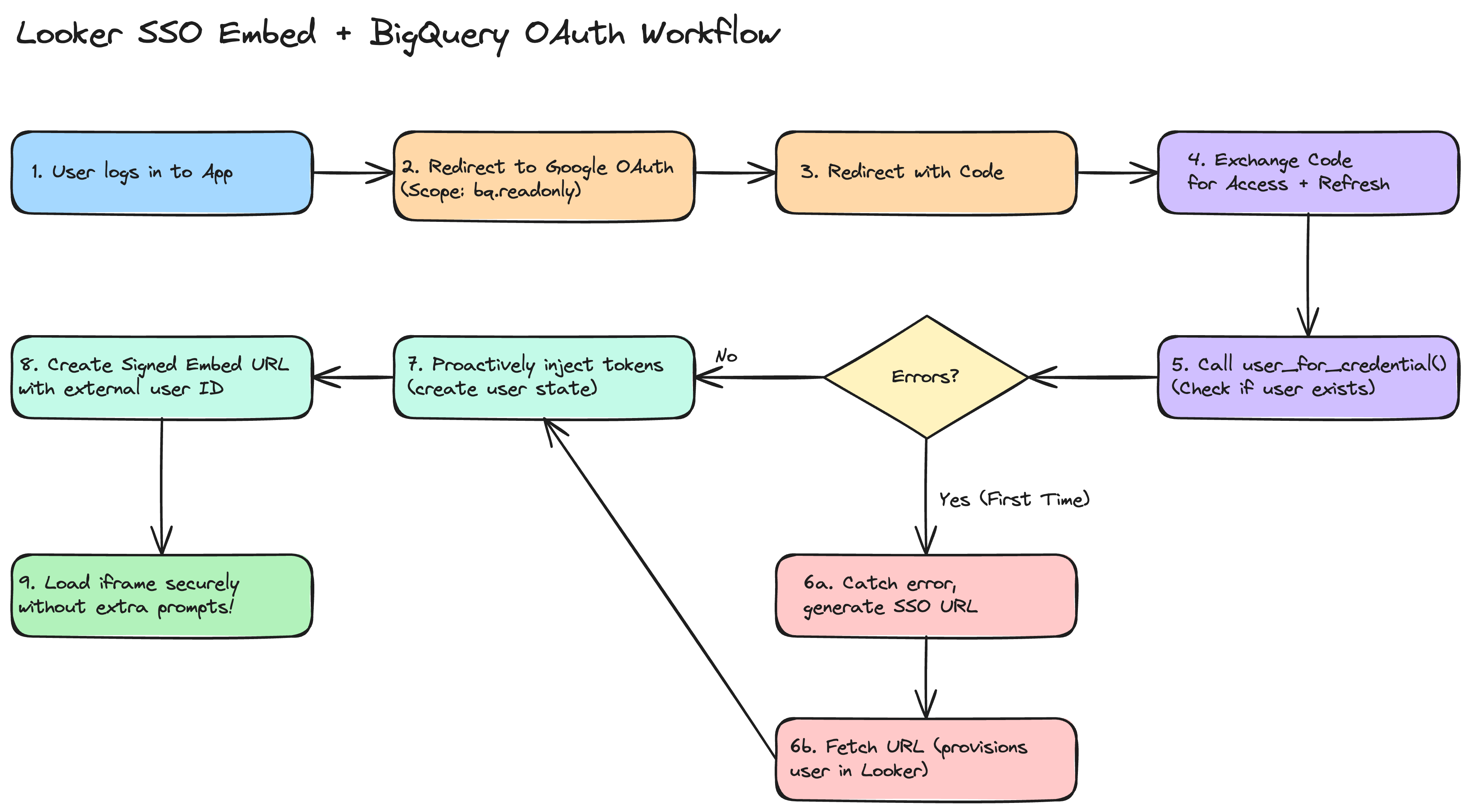
This implementation guide explains how to embed Looker dashboards backed by Google BigQuery with OAuth into your custom application smoothly, eliminating the "double authentication" phase in the iframe. There is a reference example repository, looker_oauth, made by Sam Pitcher. The code samples here are in Python, but can be done in any server-side framework.

alt text

GCP & Looker Setup

GCP OAuth Credentials

  • In the Google Cloud Console, create a single OAuth 2.0 Client ID.
  • Update your Authorized redirect URIs to list BOTH:
    • Your Looker instance native redirect URI (https://example.cloud.looker.com/external_oauth/redirect).
    • Your host application's OAuth callback URL, for example, https://app.example.com/auth/callback

Connect BigQuery to Looker

  • In the Looker Admin panel, proceed to connections and establish a Google BigQuery connection.
  • Select Authentication with OAuth and plug in your client credentials from GCP.
  • Find the generated application ID by running all_external_oauth_applications via the Looker SDK or API. We recommend using the API Explorer if you have it installed; here is a relative link for use in your Looker UI: /extensions/marketplace_extension_api_explorer::api-explorer/4.0/methods/Connection/all_external_oauth_applications

Application Level Login & Token Fetching

When users access your app, you must authorize them through Google OAuth 2.0. In your authorization redirect URL, configure exactly these dimensions:

Scopes & Access Type

Make sure your framework requests:

Sample Callback Logic

Once Google redirects to your server with the temporary authorization code, invoke standard Google OAuth API calls to fetch tokens:

# Capture Code dimension
code = request.args.get("code")

# Prepare token request using your standard Web Application Client
token_response = requests.post(
"https://oauth2.googleapis.com/token",
data={
"code": code,
"client_id": GOOGLE_CLIENT_ID,
"client_secret": GOOGLE_CLIENT_SECRET,
"redirect_uri": REDIRECT_URI,
"grant_type": "authorization_code",
}
)

response_payload = token_response.json()
access_token = response_payload.get("access_token")
refresh_token = response_payload.get("refresh_token")
expires_in = int(response_payload.get("expires_in"))

Token Synchronization via Looker SDK

Immediately after capturing Google tokens (access/refresh), proactively insert them into Looker using an Admin Looker SDK instance:

Locate the Embed User Identity

In this article, we won't go into the details of Signed Embedding or Cookieless Embedding; we assume you already know what they are, and that a user on the Looker side has already been created. In either of these methods, Looker creates unique embed users tied to the external_user_id that you pass in the SSO URLs. Fetch the user's internal Looker identifier using user_for_credential:

looker_user = sdk.user_for_credential(
credential_type='embed',
user_id=current_user.your_user_id # The external_user_id you use in SSO
)
warning

If this is the absolute first time that a user authenticates into Looker with this external_user_id and you're using signed embedding, then user_for_credential will error. You should catch this error, then create an SSO embed URL and fetch the URL to create the user.

Inject OAuth State into Looker

Construct the user state update parameters and pass them to create_oauth_application_user_state:

body = looker_sdk.models40.CreateOAuthApplicationUserStateRequest(
user_id=looker_user.id,
oauth_application_id=LOOKER_OAUTH_APPLICATION_ID,
access_token=access_token,
access_token_expires_at=datetime.datetime.now() + datetime.timedelta(seconds=expires_in),
refresh_token=refresh_token,
refresh_token_expires_at=datetime.datetime.now() + datetime.timedelta(days=180) # Common refresh expiry
)

sdk.create_oauth_application_user_state(body)

Creating the SSO URL

Once the user's access token matches successfully in Looker, issue a standard Signed Embed URL for them to use when loading the iframe. When creating the Signed Embed URL payload via create_sso_embed_url. If you are using cookieless_embedding, see this document on acquiring user attributes

warning

Make sure to provide the same exact user identification (like their email) used above.

When to Trigger

We strongly recommend using the embed-sdk package to kick off this flow with getEmbedSDK().init() & getEmbedSDK().preload() and then display the iframe without any data, and then use getEmbedSDK.loadExplore() or getEmbedSDK.loadDashboard() to load the proper data into the iframe when you need it.

Troubleshooting Checklist

If users are still prompted for authentication within the iframe, verify the following:

  • Missing Refresh Token: Ensure you requested access_type='offline' and prompt='consent' in the Google OAuth redirect. Without this, Google won't return a refresh token, and Looker will be unable to refresh expired access tokens after 60 minutes automatically.
  • Scope Mismatch: Verify that the scopes requested on application login cover exactly the necessary BigQuery scopes (e.g., https://www.googleapis.com/auth/bigquery.readonly).
  • Mismatched External User ID: The external_user_id used in the Signed SSO Embed URL must exactly match the user_id used to pull the user identity in user_for_credential before state injection.
  • Looker User Provisioning: In Signed SSO Embedding, Looker only creates the user profile on the first successful load of an SSO URL. If you try to fetch the user state before they've ever visited, user_for_credential will fail. In your server-side logic, if user_for_credential fails, provision the user by either fetching the URL or properly capturing the error.

Demystifying Looker's Custom Visualization Framework

· 8 min read

In modern business intelligence, the ability to tailor data presentations to precise business needs is paramount. While Looker provides an extensive suite of standard charts and tables, organizations frequently encounter unique requirements such as specialized network graphs, custom geographic overlays, or highly interactive d3-based visualizations.

Looker addresses this need with its Custom Visualization Framework, which lets you run arbitrary third-party JavaScript code seamlessly within a governed BI environment. However, executing external JavaScript within an enterprise application introduces significant security challenges, primarily around Cross-Site Scripting (XSS), data exfiltration, and unauthorized DOM access.

In this deep dive, we will explore the architecture of the Custom Visualization API, the mechanics of its secure loading strategy, and best practices for safely hosting custom visualization assets.


The Custom Visualization Architecture

At its core, a Looker custom visualization is an event-driven application running inside a specialized container. Rather than directly injecting custom JavaScript into Looker's main DOM window, which would be a massive security vulnerability, Looker decouples the visualization logic from the primary host application.

API 2.0 Lifecycle Hooks and Optimization

Looker's Visualization API 2.0 establishes a structured contract built for modern asynchronous workflows:

  1. Initialization: An initial setup phase constructs the required DOM container, loads necessary external drawing modules, and initializes state before any data arrives.
  2. Asynchronous Updates: Rather than blocking the main thread, API 2.0 relies heavily on asynchronous updates. The host dynamically pushes new datasets, configuration options, and metadata to the visualization container.

Optimizing for PDF and Headless Rendering

A key advantage of the API 2.0 architecture is its native support for PDF exports and scheduled deliveries. Looker passes a specialized context to the visualization to signal when it is rendering for a print or export job. Visualizations can optimize this headless flow by:

  • Disabling complex or resource-heavy micro-animations.
  • Emitting a precise completion signal back to the host immediately once the chart finishes drawing, ensuring the captured PDF is perfectly rendered without arbitrary timeouts.

Secure Interactive Capabilities

Visualizations built with API 2.0 can provide rich user interactions, such as drill menus, dynamic row limits, and cross-filtering, without directly accessing the host application's memory. By dispatching strict, serialized trigger events back to the host, the visualization can securely update filters or open drill overlays within the parent application.


Strict Security and Sandboxing

Executing user-supplied JavaScript inside a high-trust BI platform requires robust defense-in-depth. Looker achieves this through strict iframe sandboxing and isolation.

Iframe Isolation

Every custom visualization is rendered within a dynamically generated iframe that is strictly isolated from the primary application. Looker applies rigorous sandbox attributes to these iframes:

  • Script Execution: The sandbox explicitly allows scripts (allow-scripts) so the custom visualization code can run and compute layouts.
  • Restricted Capabilities: By default, the iframe lacks permissions to access the parent window's DOM, access local storage or cookies belonging to the primary Looker domain, or initiate top-level navigation away from the BI application.
    • No DOM Access: Prevents Cross-Site Scripting (XSS) and UI redressing, ensuring malicious scripts cannot alter dashboard tiles, capture keystrokes, or inject fake login modals to harvest credentials.
    • No Local Storage or Cookies: Secures active session tokens and API keys from being read or exfiltrated to external servers, preventing session hijacking.
    • No Top-Level Navigation: Ensures that a compromised script cannot redirect the browser to a spoofed phishing site or unauthorized domain.

Prevention of Data Exfiltration and XSS

By enforcing a distinct origin and sandboxed context, any malicious script embedded within a visualization is isolated. It cannot scrape Looker application cookies, intercept authentication tokens, or manipulate the user interface of the broader Looker application. All interaction with the BI environment must be explicitly serialized and passed via the Chatty message broker, which sanitizes and validates incoming events.


Registration, Loading, and Hosting Strategies

A critical aspect of maintaining security is managing how custom visualization JavaScript files are introduced to Looker. Administrators can register custom visualizations through two primary methods:

  1. LookML Manifest Files: By defining a visualization parameter in the project's manifest.lkml, developers can point directly to a repository-hosted file or an external URI.
  2. Admin > Visualizations Panel: Looker administrators can globally register a visualization via the UI by providing a unique ID, label, and main URI.

Regardless of the registration pathway, administrators should consider the following strategies for hosting visualization scripts securely:

Native LookML Project Hosting

The most secure approach is to bundle your custom visualization JavaScript directly into your LookML repository.

  • Pros:
    • Absolute Version Control: Visualization versions are tied directly to LookML commits and deployments, guaranteeing perfect alignment between the backend model and frontend view.
    • Zero External Dependency: Files are served internally by Looker, preventing failures caused by external network downtime or enterprise firewall blocks.
    • Maximum Security: Eliminates cross-origin (CORS) issues and the risk of external supply-chain or DNS hijacking attacks.
  • Cons:
    • Coupled Deployments: Any minor bug fix to the visualization requires a full LookML repository commit, review, and deployment cycle.
    • Repository Bloat: Storing large JavaScript bundles directly in the Git repository can increase repository size and cloning times.

Secure Private Servers and CDNs

Hosting visualizations externally allows teams to manage frontend assets independently of the LookML lifecycle.

  • Pros:
    • Decoupled Releases: Frontend engineers can iterate, patch bugs, and deploy visualization updates instantly without requiring LookML access or developer mode validation.
    • Multi-Instance Sharing: A single visualization bundle can be shared seamlessly across multiple independent Looker instances or environments (e.g., staging and production).
    • Edge Caching & Performance: CDNs deliver assets from edge locations close to the user, minimizing latency for large visualization bundles.
  • Cons:
    • Increased Attack Surface: Compromise of the CDN or unauthorized alteration of the hosted file could instantly inject malicious code into the Looker environment.
    • Infrastructure Overhead: Requires strict configuration and continuous monitoring of CORS headers, Subresource Integrity (SRI), and Content Security Policies (CSP).

Safe Data Rendering and Interactive Configuration

In addition to strict sandboxing, the API 2.0 specification provides robust utility layers to ensure data is parsed securely and seamlessly integrates into the parent UI without breaking isolation.

Data Sanitization and Cell Helpers

When Looker pushes a dataset to a custom visualization, the values may contain complex nested objects, unsanitized text, or unformatted numbers. To prevent DOM-based Cross-Site Scripting (XSS) when injecting these values, the API exposes dedicated cell utilities:

  • Sanitized Output: Helper functions automatically generate escaped HTML or plaintext strings suitable for display.
  • Drill and Cross-Filter Integration: The utility layers allow the visualization to inspect whether specific rows are selected or cross-filtered and trigger associated drill menus without raw DOM traversal.

Dynamic Configuration UI

Developers can specify configuration options, such as custom color palettes, range sliders, and selection dropdowns, which Looker renders in the native explore sidebar.

  • Because these settings are registered asynchronously via the event protocol, the custom visualization can dynamically introduce new options based on the incoming dataset without managing the parent application's sidebar state itself.

Event Triggers and State Management

Visualizations can influence the broader Looker query environment by emitting specific serialized messages to the host:

  • Filtering and Row Limits: Triggering updates to apply new filter conditions or query limits dynamically.
  • Loading Indicators: Emitting start and end loading signals when fetching external sub-assets or performing complex computations.

Auditing and Assessing Custom Visualization Safety

Before deploying third-party custom visualizations or external JavaScript bundles into a production Looker environment, data administrators should verify that the code does not exfiltrate proprietary data.

Here are the recommended methods to assess the safety of custom JavaScript; lkr.dev follows these principles on all our custom visualization repositories:

Static Code Analysis and Source Review

  • Keyword Scanning: Inspect the unminified JavaScript source bundle for network-related APIs, such as fetch, XMLHttpRequest, navigator.sendBeacon, or references to unexpected external domains and URIs.
  • Obfuscation Checks: Be wary of highly obfuscated or encrypted code blocks, which are often used to hide malicious payloads or unauthorized data collection logic.
  • AI-Assisted Auditing with Gemini: Leverage Gemini to perform rapid vulnerability screening on visualization bundles. By providing the JavaScript source to Gemini and prompting it to act as a strict application security auditor, teams can quickly surface data exfiltration risks, external network calls, or hidden logic accessing browser storage.

Dynamic Network Monitoring

  • Browser DevTools: Load the custom visualization in a secure sandbox or staging environment. Utilize the browser's Network panel to observe all outbound requests generated by the visualization iframe while interacting with live explore data.
  • Zero-Trust Validation: The visualization should only communicate via the secure Chatty postMessage layer or fetch explicit, approved subresource libraries. Any unexpected cross-origin request should be flagged immediately.

Dependency and Supply Chain Auditing

  • Package Vulnerability Scans: If the visualization is built using modern node/npm toolchains, run automated dependency audits to ensure included libraries (e.g., drawing or utility packages) do not suffer from known vulnerabilities or malicious supply-chain injections.
  • Open Source Transparency and Self-Bundling: Visualizations developed by communities such as lkr.dev are completely open source. Data teams can inspect the raw source code on public repositories, independently audit the full dependency tree, and compile/bundle the final JavaScript package themselves before deploying it to Looker. This eliminates the risks associated with downloading pre-compiled third-party binaries.

Conclusion

Looker's Custom Visualization Framework demonstrates how platforms can achieve maximum extensibility without compromising on security. By combining strict iframe sandboxing, cross-frame message passing, and secure file hosting strategies, data teams can safely deploy fully tailored, interactive visualizations that integrate natively into the Looker experience.

Permission Changes for Data Distribution

· 5 min read

Looker is making an important security and permissions update regarding data distribution permissions for end users. This post will cover what is changing, how it might impact your users, and how you can use the lkr CLI tool to audit your instance and prevent disruptions proactively.

info

This change is being rolled out starting April 15, 2026

tl;dr;

Run the lkr CLI tool to audit your Looker permissions and prevent disruptions from the upcoming permission deprecation. Prerequisite: install uv

uvx --from lkr-dev-cli[tools] lkr \
--client-id <client-id> \
--client-secret <client-secret> \
--base-url <https://<instance>.cloud.looker.com> \
tools schedule-download-deprecation

alt text

The output is a table of users who will be affected by the permission deprecation. The table will include columns for the user and for every model in your instance. If a user loses permissions after this deprecation, you will see a list of the permissions they will lose. If they don't have access to the model, you will see N/A, and if they won't be losing permissions to the model, they'll see ✅.

What is Happening?

Data distribution permissions, such as downloading and scheduling, were historically documented as enforced at the model level, but they functioned as instance-wide permissions. This discrepancy meant that users might have had broader access to extract data than intended by administrators. This didn't expand their ability to access the data, only their ability to extract it.

To prevent potential data exfiltration and to align the platform's behavior with its documentation, Looker is officially scoping these permissions strictly to the model level.

Impacted Permissions:

  • download_with_limit
  • download_without_limit
  • schedule_look_emails
  • schedule_external_look_emails
  • send_to_s3
  • send_to_sftp
  • send_outgoing_webhook
  • send_to_integration

Will my Looker instance be impacted?

If all your roles use the All Models model set, you don't need to worry about this change. If you manage multiple roles in Looker and have different permission sets across models, we recommend running this tool to audit your instance.

How Does This Affect My Users?

After this change takes effect, users with download or schedule permissions will only be able to extract data from models where they have explicit action permissions within their designated Model Sets.

For instance, if a dashboard contains data from Model A and Model B, but a user only has schedule permissions for Model A, they will only be able to schedule data from Model A. If they previously relied on instance-wide permissions to distribute data from Model B, they will start encountering "data access denied" errors.

As a Looker Admin, you will need to identify these permission gaps and explicitly grant model-level access to resolve them.

note

Looker SSO embed users are unaffected by this update. Because these user types already have a matrix of models and their permissions defined by their authentication method, they are inherently properly scoped.

Identifying Permission Gaps Using the LKR CLI

To help Looker admins evaluate the impact of this update on their users, we've introduced the schedule-download-deprecation tool within the lkr CLI. This tool audits all active users and identifies those who hold instance-wide distribution permissions but are missing them on specific models they otherwise have access to.

Installation

The easiest way to use this tool is via uv. Other methods are available in the README or in the CLI docs.

uvx --from lkr-dev-cli[tools] lkr tools schedule-download-deprecation

Authentication

You can authenticate with Looker using either OAuth2 or an API Key (Client ID and Secret). You can see the full documentation for the lkr cli here, which includes authentication options.

If you are using API Keys, you may also use a .env file with LOOKERSDK_CLIENT_ID, LOOKERSDK_CLIENT_SECRET, and LOOKERSDK_BASE_URL, and call the tool like this:

uvx --from lkr-dev-cli[tools] --env-file .env lkr tools schedule-download-deprecation

Exporting the Results

The tool has a few options to help you export the results. The default output in the CLI is a table of users and their model permissions, but you can export the results to a CSV file for easier filtering and analysis on large Looker instances.

uvx --from lkr-dev-cli[tools] lkr tools schedule-download-deprecation --csv --email

To see a full list of the tool options, like --csv and --email, you can use the --help flag.

uvx --from lkr-dev-cli[tools] lkr tools schedule-download-deprecation --help

Understanding the Output

The output table provides a clear breakdown of which users have instance-wide permissions but lack them on specific models.

  • Instance Wide: Lists the abbreviated permissions the user currently holds across the instance.
  • Model Columns (e.g., thelook, finance):
    • : The user has the necessary target permissions explicitly defined for this model.
    • Blank: The user does not have instance-wide target permissions to begin with (not impacted).
    • N/A: The user does not have any access to this model (not impacted).
    • Permission Abbreviations (e.g., dwl, sle): The user is missing these specific permissions for this model and will lose their distribution capabilities when the deprecation is enforced.

Next Steps

By running this tool, you can proactively adjust your Role assignments and Model Sets before the deprecation phases begin. Ensuring that users have explicit model-level permissions for the data they need to distribute will guarantee a seamless transition and zero disruption to your business workflows.

Developer's Guide to Cookieless Embedding

· 7 min read

This guide is designed to walk you through Looker's Cookieless Embed logic, the "gotchas," and the architecture without getting bogged down in code syntax. You can find the nitty-gritty details in Looker's official documentation and in the package. If you would like lkr.dev to work on a code sample in your backend or frontend of choice, feel free to reach out here.

Stop. Do you think you really need this?

Before we dive in, let’s make sure you aren't over-engineering. Cookieless embedding is robust, but it requires significantly more development effort (backend API endpoints, token management, caching) than the standard method.

You should stick to Standard Signed Embedding with a Custom Domain if:

  1. You control the domain where Looker is embedded (e.g., your portal is portal.mycompany.com). And...
  2. You can set up a custom domain (e.g., analytics.mycompany.com) on Looker Core or by reaching out to your Account Manager for Looker hosted.

Why? If the top-level domains match (both end in mycompany.com), browsers treat Looker's cookies as "first-party." They won't get blocked, and you don't need to build complex token management.

You absolutely need Cookieless Embedding if:

Your embedding application is hosted across multiple, disparate domains that you do not fully control (e.g., a SaaS product with customer-a.com and customer-b.com domains), making a custom Looker domain impractical.

Before you begin, you should familiarize yourself with the following links:

Test first with the demo application

Before you start building your own Looker embed, we strongly recommend running the Looker Embed SDK Demo Application. It’s the fastest way to verify that your Looker instance is correctly configured for cookieless embedding. We recommend getting at least one dashboard up and running with the following steps.

Step 1 - Enable Cookieless Embedding in your Looker instance

Navigate to Admin > Platform > Embed on your Looker instance. This requires Admin privileges.

  1. Enable Cookieless Embed: Toggle this setting to On.
  2. Embed SSO Authentication: Ensure this is also enabled if you plan to use signed features.
  3. Embedded Domain Allowlist: The demo server runs by default at http://localhost:8080. Add this address to the allowlist to enable the demo to receive messages from Looker.

Step 2 - Customize the Demo Settings

The embed demo environment is configured using a .env file in the root of the repository. Create this file and add the following cookieless-specific configuration:

# Looker Instance Configuration
LOOKER_WEB_URL=mycompany.looker.com
LOOKER_API_URL=https://mycompany.looker.com

# API Credentials (from Admin > Users > API3 Keys)
LOOKER_CLIENT_ID=your_client_id
LOOKER_CLIENT_SECRET=your_client_secret

# Embed Configuration
LOOKER_EMBED_TYPE=cookieless
LOOKER_DASHBOARD_ID=123

Next, customize the embedded user's identity and permissions by editing demo/demo_user.json. This file defines the profile Looker will use for the cookieless session. Key fields include:

  • external_user_id: A unique ID for the user in your system.
  • permissions: Roles like access_data, see_looks, explore, see_user_dashboards, see_lookml_dashboards.
  • models: The LookML models this user is allowed to access.

Step 3 - Build and Run

Clone the repo and run the following commands from the top-level embed-sdk directory:

npm install
npm run server

The server will listen on http://localhost:8080.

Step 4 - Verify in the UI

Once the app is running:

  1. Open your browser to http://localhost:8080.
  2. Ensure the "Use cookieless" radio button is selected.
  3. Click "Run".

This will initiate the cookieless handshake and load the Looker content into the iframe. Success here confirms your Looker instance permissions and domain allowlists are correctly configured! Now you should start integrating it into your own application.

The Tokens

Looker uses a number of client safe and client secret tokens to authenticate cookieless embedding. The importance of each token is described below, however ignorance is bliss. You can get away with not understanding the tokens and still have a successful implementation, but it's good to know what's happening under the hood when you get stuck. When implementing cookieless embedding, we strongly recommend using the @looker/embed-sdk to handle the most of the token management for you on the client.

Understanding the Tokens

The token handshake is the core of the cookieless embedding process. It's the mechanism that enables the embedding application to authenticate with Looker and obtain a token to access the Looker API.

The token handshake is a two-step process:

  1. The embedding application requests a token from the Looker API.
  2. The Looker API returns a token to the embedding application.

The token handshake is a secure process that uses a shared secret to authenticate the embedding application with Looker.

The Session Reference Token

This is the most critical piece of the puzzle. Think of the Session Reference Token exactly like a Refresh Token in OAuth/JWT flows. It is a Secret. If someone gets this token, they are that user. They can generate new sessions and access data as that user. Treat it as a secret and avoid sending it to the client (browser). In most scenarios, the client (browser) doesn't need it and your backend should receive it from Looker, store it securely, and use it only to communicate with the Looker server via server-to-server.

There are exceptions for sending it to the client, for example if you are avoiding storing in your backend. If so it's a secret and you will need to re-use it, therefore encrypt it before sending it to the client.

Its expiration is controlled by the session_length parameter in the acquire_embed_cookieless_session API call, which defaults to 5 minutes and can be set to a maximum of 30 days.

All Token Descriptions

Token TypeDescription
Session Reference TokenThis is the most critical piece of the puzzle. Think of it exactly like a Refresh Token in OAuth/JWT flows. It is a Secret. If someone gets this token, they are that user. They can generate new sessions and access data as that user. Treat it as a secret and avoid sending it to the client (browser). In most scenarios, the client (browser) doesn't need it and your backend should receive it from Looker, store it securely, and use it only to communicate with the Looker server via server-to-server. Its expiration is controlled by the session_length parameter in the acquire_embed_cookieless_session API call, which defaults to 5 minutes and can be set to a maximum of 30 days.
Navigation TokenAdd this to the iframe URL. It allows the user to load pages and click links within Looker. These are short-lived (typically 10 minutes or less), which limits the blast radius if intercepted.
API TokenThe Looker Embed SDK uses this to fetch chart data. These are short-lived (typically 10 minutes or less), which limits the blast radius if intercepted.
Authentication TokenA one-time-use token (valid for only 30 seconds) used strictly to start the session. These are short-lived (typically 10 minutes or less), which limits the blast radius if intercepted.

Don't forget your user agent.

The User Agent is a critical component of session security when using Looker's cookieless embed. Please ensure it is transmitted correctly from your browser to your backend and then to the Looker API. The user agent is used to match the browser iframe URL to the session reference token. If the user agent is not passed correctly, the iframe will not load. Cookieless Embedding Troubleshooting for more information on how to determine whether this is the issue with your embedding

Cookieless Embedding Troubleshooting

· 4 min read

If you haven't already, please see the Cookieless Embedding Guide for a high-level overview of cookieless embedding and how it's supposed to work. Most cookieless embed issues are resolved by the following:

  1. Make sure Cookieless Embedding is enabled in your Looker instance in Admin > Platform > Embed
  2. Use @looker/embed-sdk on your frontend so that it can handle all token passing to the Looker iframe
  3. Make sure your endpoints that use acquire_embed_cookieless_session and generate_tokens_for_cookieless_session are passing the user agent from your application backend to the Looker API request
  4. Your application's domain is in Looker's Embedded Domain Allowlist
  5. Look at each entry of the Embedded Domain Allowlist and make sure none of them end with a trailing slash

You can use the below as a specific troubleshooting guide.

Common Issues

Content cannot be displayed (with Try Again button)

Content cannot be displayed (try again button)

Content cannot be displayed (without the Try Again button)

Content cannot be displayed

No embed_domain query parameter

Could you open up your iframe URL and check for the embed_domain query parameter? It should match the domain in which the iframe is loaded (window.location.origin).

targetDomain is not allow listed

Check the browser console for the following error:

Domain check failed: targetDomain is [your embed domain]. Verify domain has been allow listed in the embed admin page.

See Embedded Domain Allowlist for more information. Also, most browsers will copy and paste your url with a trailing slash, the embed domain should not have a trailing slash; be carefuly when copy pasting.

Missing or Misconfigured User Agent

The user agent is an important component of the session security. Ensure it is passed correctly from your backend to the Looker API.

The most likely cause is that you are re-using the values from a cached session and your TTL's are not properly passed to Looker. Looker will emit the session:tokens:request Post Message event when the ttl's are within 60 seconds of expiring. If you are using a cached value (not directly from the Looker API) you will need to re-calculate the TTL's and pass them to Looker.

Single Sign-on failure

Single Sign-on failure

/login/embed/ 302's to /login

The most likely cause is that you are not passing through the User Agent from your application backend to Looker in the acquire_embed_cookieless_session API call. When Looker tries to load the iframe with the embed_authorization_token query parameter, it checks the User Agent.

Example javascript with @looker/sdk-node:

function acquireEmbedCookielessSession(
userAgent,
user,
session_reference_token
) {
return sdk.ok(
sdk.acquire_embed_cookieless_session(
{
...user,
session_reference_token,
},
{
headers: {
"User-Agent": userAgent,
},
}
)
);
}

Short-lived authentication tokens

Authentication tokens are short-lived (30 seconds) and are used to start an iframe session. If the authentication token is not used within the 30 second window, you will receive the Single Sign on failure.

Single use authentication tokens

Authentication tokens are single use and are used to start an iframe session. If the authentication token is used more than once, you will receive the Single Sign on failure.

Uncommon Issues

Changing user in acquire_embed_cookieless_session but the changes are not reflected in the iframe.

It's common for your application to want to change a user's permissions if you are monetizing different levels of persmissions of Looker embeds. You may run into a scenario where the changes you make to the user aren't immediately reflected in the iframe. This is most likely because you are re-using a session_reference_token from a cached value. If the session_reference_token is provided and the session has not expired, the embed user is not updated. This is done for performance reasons on Looker's backend. If you need to update the embed user in some way, you must generate a new session_reference_token and cache it's value.

Evolving Dashboard Navigation in Looker

· 4 min read

For Looker users and developers, the challenge of creating a truly integrated, multi-tabbed dashboard experience in Looker has long been a point of focus. This post details the progression from manual workarounds to a sophisticated, native solution leveraging the Looker Extension Framework. With an easy-to-install extension, anyone can create a multi-tabbed dashboard experience in Looker, either in a presentation-style format or ad hoc using folders and boards.

See the documentation and the repository

Markdown Tile HTML & Its Limitations

Historically, simulating tabs in Looker involved embedding custom HTML code within Markdown tiles on dashboards. This method created navigational links that directed users to entirely separate Looker dashboards.

Key technical drawbacks of this workaround included:

  • A fragmented user experience where each "tab" was a distinct dashboard, requiring full page loads and breaking user flow, despite appearing integrated. Other BI tools like QuickSight, Power BI, and Tableau typically offer this as a fundamental feature.
  • A crucial lack of filter persistence, meaning filters applied on one dashboard did not automatically carry over to linked dashboards, forcing manual re-application and disrupting analysis context. Some great hacks do exist for this use case
  • High maintenance overhead due to the necessity of copying and managing the same HTML code across multiple dashboards, increasing the potential for errors and maintenance burden.
  • Limited customization options, as HTML in Markdown tiles restricted dynamic behavior or deeper integration. This method was akin to basic website design. It was essential to use Markdown tiles, not Text tiles, for the HTML to work.

There have been a lot of noise feature requests (need access?) around this feature for a while.

Introducing lkr.dev Dashboard Tabs Extension

Dashboard Tabs Extension

The introduction of this extension represents a significant advancement in usability for Looker users. This extension is designed to reduce the complexity of building custom data applications by handling core web application functionalities such as hosting, authentication, authorization, and API access, allowing developers to focus on application-specific logic. Developing with the Extension Framework requires LookML developer permissions and the feature to be enabled by a Looker admin.

Technical Capabilities and Enhancements

The lkr.dev Dashboard Tabs extension offers a technically superior and more integrated experience by:

  • Seamlessly applying filters across multiple dashboards when filter names are consistent, which is critical for maintaining analytical context across different views. The extension dynamically updates global filters based on changes in the embedded dashboard's URL.
  • Supporting various methods for defining tab content, configurable through its settings:
    • Configuring specific dashboard IDs to display as default tabs.
    • Enabling browsing and navigating through Looker folders, accessing both personal and shared folders.
    • Enabling navigation through Looker boards and their sections, which displays only dashboards (not Looks or links) and respects board sorting.
  • Providing dynamic ad-hoc dashboard management, allowing users to add and remove dashboards on the fly without needing manifest configuration changes. It includes functionality to search for dashboards and convert ad-hoc collections into permanent Looker boards.
  • Leveraging a wide array of Looker API methods to support accessing tabbed dashboards through folders, boards, and default configurations.
  • Offering customizable theming, which allows for programmatic control over the extension's appearance. This includes setting personalized background colors and optimizing text color for readability using luminance calculations to ensure WCAG contrast compliance. These theme settings seamlessly apply across the entire extension interface and the embedded dashboards. There is also an option to hide the branded loading screen.
  • Facilitating advanced printing functionality for generating PDF exports of all configured dashboards in one operation, with currently applied filters maintained for comprehensive reports. This allows for simultaneous printing of multiple dashboards.
  • Providing URL persistence, where the state of the tabbed interface, including applied filters, can be saved and shared via URL, enabling users to return to a specific analytical view easily.

In summary, the lkr.dev Dashboard Tabs extension moves beyond superficial tab simulations, providing a deeply integrated and feature-rich navigation system for Looker dashboards directly within the Looker platform.

Securing Your Looker Extensions with Cloud Run: A Complete Guide

· 12 min read

Looker extensions provide a powerful way to extend your Looker instance beyond what the standard API offers. However, when your extensions need to connect to external services or run custom code, security becomes essential. This comprehensive guide covers how to securely integrate Looker extensions with Google Cloud Run, keeping your data and services protected.