Google Docs Looker Action Hub
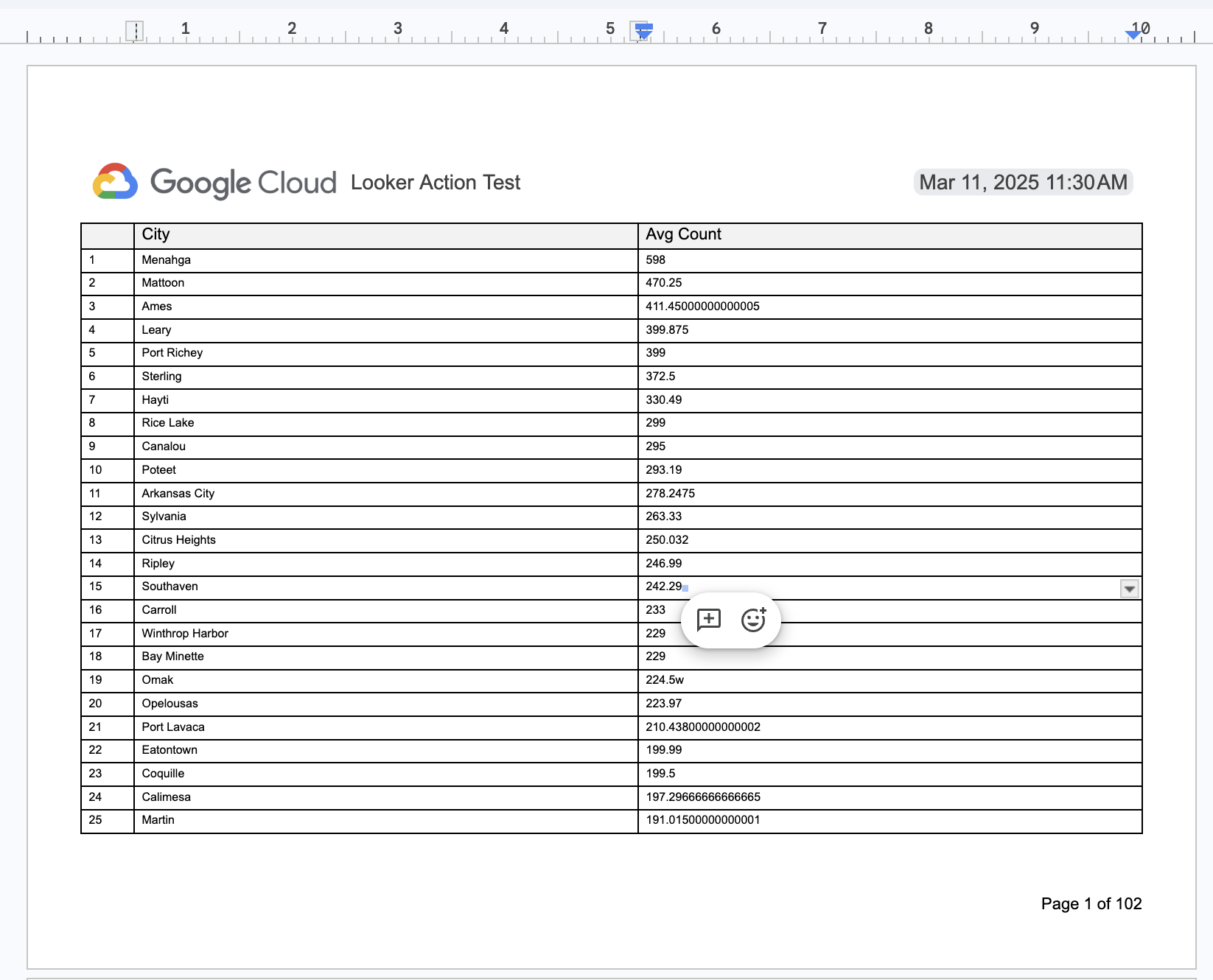
A lightweight, fully minimized standalone Looker Action Hub hosting only the Google Docs Looker action (google_docs). The purpose of this is to get unlimited results into Google Docs which supports:
- Headers & Footers
- Page numbers and dynamic text
- Section breaks
- Table headers across all pages
- PDF and physical printing
Here is a link to an example output document with unlimited results and a downloadable PDF.
What It Does
When Looker sends a query payload via webhook, this service:
- Validates OAuth2 user credentials (
driveanddocumentsscopes) against Google APIs, enforcing optional domain allowlists (domain_allowlist). - Creates a new blank Google Document (
application/vnd.google-apps.document) within a target Drive folder or Shared Drive. - Formats page boundaries to Landscape (
11" x 8.5") with0.5"margins. - Streams Looker CSV payloads into a dynamic Google Doc table via batched
insertTextoperations (default 100 insertions/batch) to optimize API payload constraints. - Additional formatting:
- Applies pinned header rows (
pinTableHeaderRows: 1) to repeat table headers across page breaks. - Styles header rows with a
rgb(0.95, 0.95, 0.95)light-gray background and bold text. - Configures fixed column properties (first column at
0.5", remaining columns distributed evenly) and8pttypography.
- Applies pinned header rows (
- Implements exponential backoff retries (up to 5 attempts) on Google API rate limits (
429) or server failures (5xx).
Prerequisites
For local development and testing, you will need to install:
- Node.js (>= 20.16.0) and Yarn (>= 1.19.1).
- Astral uv for managing Python environments and scripts.
For deploying to Google Cloud, you can:
- Install the Google Cloud SDK (gcloud CLI) locally.
- Alternative (No Installation Required): Use Google Cloud Shell. Cloud Shell is a web-based terminal that comes pre-configured with the Google Cloud SDK, Node.js, Yarn, Git, and Docker. You can also deploy instantly using the Deploy to Cloud Run button below.
Connecting to Looker
Register the deployed Action Hub within Looker:
- Navigate to Admin > Platform > Actions.
- Click Add Action Hub.
- Enter your deployed Cloud Run URL (e.g.,
https://google-docs-action-xxx-uc.a.run.app). - Supply your Authorization Token (
ACTION_HUB_SECRETor authorization headers). - Click Add Hub and enable the Google Docs action.
Google OAuth Client Setup
To allow Looker users to authenticate with Google Drive and Google Docs, you must create Google OAuth 2.0 credentials:
- Go to the Google Cloud Console.
- Select your Google Cloud project or create a new one.
- Configure the OAuth Consent Screen:
- Navigate to APIs & Services > OAuth consent screen.
- Choose Internal (if you want to limit access to users in your Google Workspace organization) or External, then click Create.
- Fill in the required application details (App name, user support email, developer contact information) and click Save and Continue.
- (Optional) In the Scopes page, you can add
https://www.googleapis.com/auth/driveandhttps://www.googleapis.com/auth/documentsscopes, then click Save and Continue.
- Generate OAuth Credentials:
- Navigate to APIs & Services > Credentials.
- Click + Create Credentials at the top of the page, and select OAuth client ID.
- Set Application type to Web application.
- In the Authorized redirect URIs section, click + Add URI:
- For local development / initial setup: Add
http://localhost:8080/actions/google_docs/oauth_redirect - For Cloud Run deployment: You should put a placeholder for now.
https://example.com. Once you deploy, you must return here to add the final redirect URI:https://<your-cloud-run-domain>/actions/google_docs/oauth_redirect.
- For local development / initial setup: Add
- Leave Authorized JavaScript origins empty/blank.
- Click Create.
- Save the generated Client ID and Client Secret. These will be used for the
GOOGLE_DRIVE_CLIENT_IDandGOOGLE_DRIVE_CLIENT_SECRETenvironment variables.
Deploying to Google Cloud Run
Option A: Deploying via Google Cloud Shell (Recommended)
You can deploy this integration directly to Cloud Run using Google Cloud Shell. This opens Google Cloud Shell, clones the repository, and runs the interactive setup script:

After the Cloud Shell environment finishes loading, execute the deployment script. You can run it interactively (the script will prompt you for any missing options) or run it fully unattended by passing command-line arguments:
# Run interactively (will prompt for missing credentials)
./deploy.sh

# Or run non-interactively by passing arguments directly
./deploy.sh --project-id="my-project-id" --drive-client-id="my-client-id" --drive-client-secret="my-client-secret"
(Note: The script will automatically install uv if it is not already present on your system, and then launch the Python wizard. Any arguments you pass to ./deploy.sh are automatically forwarded directly to the underlying bin/deploy.py script.)
This script will automatically:
- Enable the required Google Cloud APIs (Cloud Run, Secret Manager, Google Drive, and Google Docs).
- Prompt you for (or accept via arguments) your Google Drive Client ID and Client Secret.
- Generate and store secure encryption keys in Secret Manager (
cipher-masterandaction-hub-secret). - Deploy the integration to Google Cloud Run.
- Optionally register the Action Hub automatically in your Looker instance.
- Output the final URL and API Token details.
CLI Options Reference
The deployment script (./deploy.sh / bin/deploy.py) supports the following command-line options:
| Option | Shorthand | Type | Description |
|---|---|---|---|
--project-id | -p | TEXT | Google Cloud Project ID |
--drive-client-id | TEXT | Google Drive Client ID | |
--drive-client-secret | TEXT | Google Drive Client Secret | |
--region | -r | TEXT | Cloud Run region (e.g. us-central1) |
--service-account-email | TEXT | Specific pre-existing service account email to run the Cloud Run service. (Note: If specified, the script will automatically grant the necessary Secret Accessor and Log Writer roles to it.) | |
--register-looker / --no-register-looker | FLAG | Automatically register the action in Looker | |
--looker-url | TEXT | Looker Base URL (e.g., https://yourcompany.looker.com) | |
--looker-client-id | TEXT | Looker Client ID | |
--looker-client-secret | TEXT | Looker Client Secret | |
--help | FLAG | Show help message and exit |
For example, to run a fully unattended deployment with automated Looker registration and a custom pre-existing service account:
./deploy.sh \
  --project-id="my-gcp-project" \
  --drive-client-id="my-drive-client-id" \
  --drive-client-secret="my-drive-client-secret" \
  --region="us-central1" \
  --service-account-email="my-preexisting-sa@my-gcp-project.iam.gserviceaccount.com" \
  --register-looker \
  --looker-url="https://mycompany.looker.com" \
  --looker-client-id="my-looker-api-id" \
  --looker-client-secret="my-looker-api-secret"
Option B: Deploying via CLI (gcloud)
- Enable the Google Drive and Google Docs APIs in your Google Cloud Project:
gcloud services enable drive.googleapis.com docs.googleapis.com
- Deploy the standalone action integration to Google Cloud Run:
export GOOGLE_DRIVE_CLIENT_ID=<your generated client id>
export GOOGLE_DRIVE_CLIENT_SECRET=<your generated secret>
export CIPHER_MASTER=$(openssl rand -hex 32)
export ACTION_HUB_SECRET=$(openssl rand -hex 32)

gcloud secrets create cipher-master \
  --data-file <(echo $CIPHER_MASTER)

gcloud secrets create action-hub-secret \
  --data-file <(echo $ACTION_HUB_SECRET)

gcloud run deploy google-docs-action \
  --image=us-central1-docker.pkg.dev/lkr-dev-production/looker-action/google-docs-action:latest \
  --platform=managed \
  --region=us-central1 \
  --no-invoker-iam-check \
  --set-env-vars="GOOGLE_DRIVE_CLIENT_ID=your_id,GOOGLE_DRIVE_CLIENT_SECRET=your_secret,ACTION_HUB_SECRET=your_action_hub_secret,ACTION_HUB_BASE_URL=https://your-cloud-run-url,ACTION_HUB_LABEL=Google Docs,CIPHER_MASTER=your_cipher_master"
Option C: Deploying via Google Cloud Web Console (UI)
-
Enable APIs:
- Go to APIs & Services > Library in the GCP Console.
- Search for Google Drive API and click Enable.
- Search for Google Docs API and click Enable.
-
Create Secrets:
- Navigate to Security > Secret Manager and click Create Secret.
- Name it
cipher-master, enter a randomly generated 32-byte hex string (e.g. fromopenssl rand -hex 32locally) as the secret value, and click Create Secret. - Click Create Secret again. Name it
action-hub-secret, enter a randomly generated secret value (to authenticate Looker), and click Create Secret.
-
Deploy Cloud Run Service:
- Navigate to Cloud Run and click Create Service.
- Select Deploy one revision from an existing container image.
- Paste the container image URL:
us-central1-docker.pkg.dev/lkr-dev-production/looker-action/google-docs-action:latest - Name your service (e.g.,
google-docs-action) and select your Region. - Under Authentication, select Allow unauthenticated invocations.
- Expand the Container, Volumes, Connections, Security section:
- Under Variables & Secrets, add the following environment variables:
GOOGLE_DRIVE_CLIENT_ID: Your Google OAuth Client ID.GOOGLE_DRIVE_CLIENT_SECRET: Your Google OAuth Client Secret.ACTION_HUB_LABEL:Google DocsACTION_HUB_BASE_URL: The URL of your deployed Cloud Run service (e.g.https://google-docs-action-xxxx.a.run.app). Note: You can update this environment variable with the generated URL after deployment.
- Reference your secrets as environment variables:
- Reference secret
cipher-master(versionlatest) and expose it as environment variableCIPHER_MASTER. - Reference secret
action-hub-secret(versionlatest) and expose it as environment variableACTION_HUB_SECRET.
- Reference secret
- Under Variables & Secrets, add the following environment variables:
- Click Create to deploy.
Option D: Deploying via Terraform
If you prefer Infrastructure-as-Code (IaC), you can provision all necessary Google Cloud resources (APIs, Service Account, Secrets, IAM policies, Artifact Registry, and Cloud Run) using Terraform.
-
Navigate to the
terraformdirectory:cd terraform -
Copy the example variables file:
cp terraform.tfvars.example terraform.tfvars -
Open
terraform.tfvarsand fill in your configuration (your Google Cloud project ID, preferred region, and Google Drive OAuth credentials). -
Initialize and apply the Terraform configuration:
terraform init
terraform apply
(This will initially deploy a lightweight placeholder container because your custom integration container has not yet been built and pushed to the repository.)
-
Build and push your integration container to the newly created Artifact Registry using Google Cloud Build:
gcloud builds submit --tag $(terraform output -raw suggested_docker_image_tag) ..(Note the
..at the end to point Cloud Build to the parent directory containing theDockerfileand source code.) -
Update the Cloud Run service with the newly built image and the final service URL:
terraform apply -var="image=$(terraform output -raw suggested_docker_image_tag)" -var="action_hub_base_url=$(terraform output -raw service_url)"(Alternatively, uncomment and update these variables inside your
terraform.tfvarsfile and runterraform apply.) -
Add the OAuth redirect URI to your Google Cloud Console OAuth Client ID:
<your_service_url>/actions/google_docs/oauth_redirect
Local Development
Setup & Run
# Install dependencies
yarn install

# Configure environment variables
cp .env.example .env
# Set GOOGLE_DRIVE_CLIENT_ID & GOOGLE_DRIVE_CLIENT_SECRET in .env

# Start production server
yarn start

# Run development server with hot-reloading
yarn dev
Testing
Run the test suite (Mocha unit/integration tests, TypeScript compilation, and linter):
yarn test