
One post tagged with "embedding"

View All Tags

Looker Embed with BigQuery OAuth

· 4 min read

This implementation guide explains how to embed Looker dashboards backed by Google BigQuery with OAuth into your custom application smoothly, eliminating the "double authentication" phase in the iframe. There is a reference example repository, looker_oauth, made by Sam Pitcher. The code samples here are in Python, but can be done in any server-side framework.
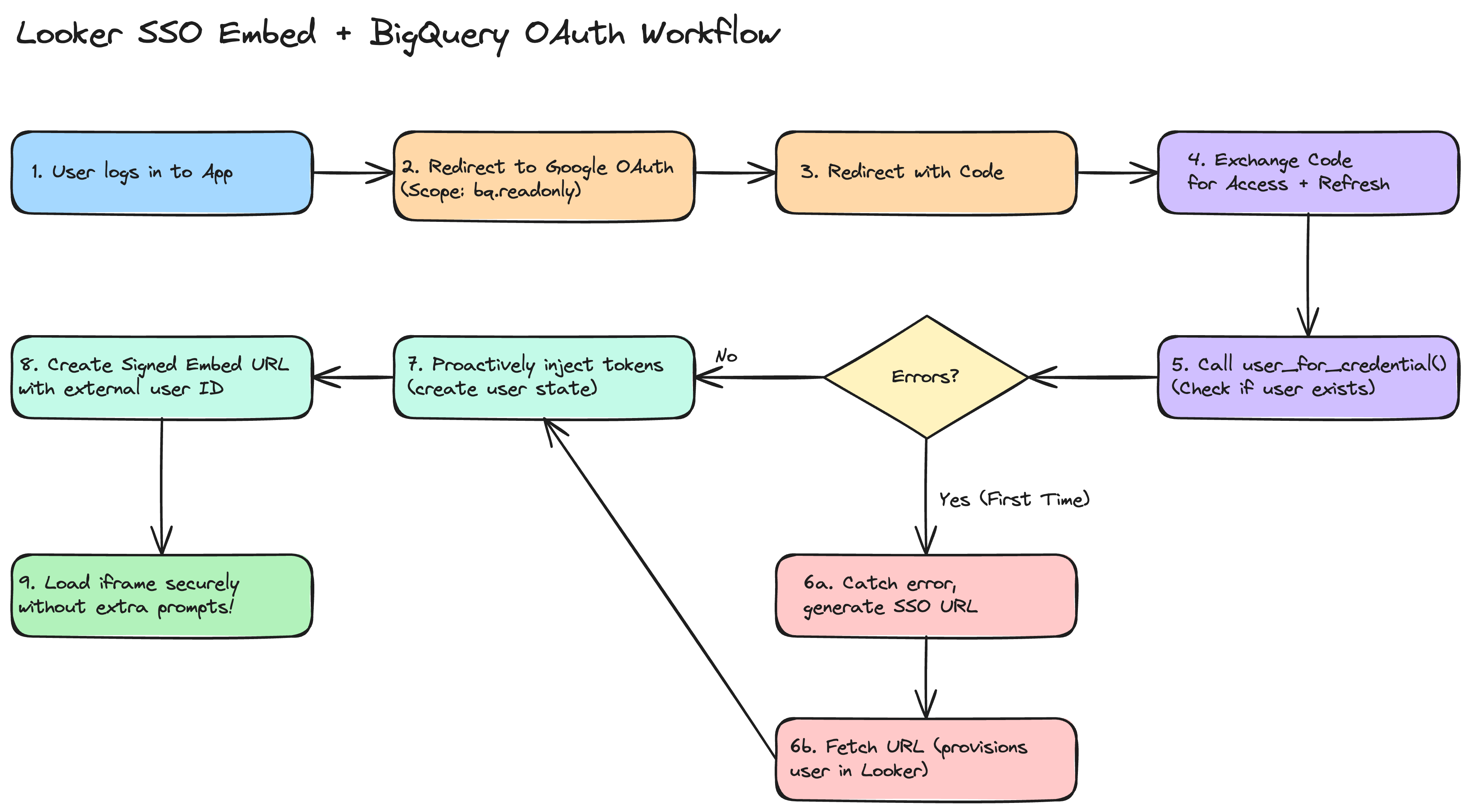
alt text

GCP & Looker Setup

GCP OAuth Credentials

  • In the Google Cloud Console, create a single OAuth 2.0 Client ID.
  • Update your Authorized redirect URIs to list BOTH:
    • Your Looker instance native redirect URI (https://example.cloud.looker.com/external_oauth/redirect).
    • Your host application's OAuth callback URL, for example, https://app.example.com/auth/callback

Connect BigQuery to Looker

  • In the Looker Admin panel, proceed to connections and establish a Google BigQuery connection.
  • Select Authentication with OAuth and plug in your client credentials from GCP.
  • Find the generated application ID by running all_external_oauth_applications via the Looker SDK or API. We recommend using the API Explorer if you have it installed; here is a relative link for use in your Looker UI: /extensions/marketplace_extension_api_explorer::api-explorer/4.0/methods/Connection/all_external_oauth_applications

Application Level Login & Token Fetching

When users access your app, you must authorize them through Google OAuth 2.0. In your authorization redirect URL, configure exactly these dimensions:

Scopes & Access Type

Make sure your framework requests:

Sample Callback Logic

Once Google redirects to your server with the temporary authorization code, invoke standard Google OAuth API calls to fetch tokens:

# Capture Code dimension
code = request.args.get("code")

# Prepare token request using your standard Web Application Client
token_response = requests.post(
"https://oauth2.googleapis.com/token",
data={
"code": code,
"client_id": GOOGLE_CLIENT_ID,
"client_secret": GOOGLE_CLIENT_SECRET,
"redirect_uri": REDIRECT_URI,
"grant_type": "authorization_code",
}
)

response_payload = token_response.json()
access_token = response_payload.get("access_token")
refresh_token = response_payload.get("refresh_token")
expires_in = int(response_payload.get("expires_in"))

Token Synchronization via Looker SDK

Immediately after capturing Google tokens (access/refresh), proactively insert them into Looker using an Admin Looker SDK instance:

Locate the Embed User Identity

In this article, we won't go into the details of Signed Embedding or Cookieless Embedding; we assume you already know what they are, and that a user on the Looker side has already been created. In either of these methods, Looker creates unique embed users tied to the external_user_id that you pass in the SSO URLs. Fetch the user's internal Looker identifier using user_for_credential:

looker_user = sdk.user_for_credential(
credential_type='embed',
user_id=current_user.your_user_id # The external_user_id you use in SSO
)
warning

If this is the absolute first time that a user authenticates into Looker with this external_user_id and you're using signed embedding, then user_for_credential will error. You should catch this error, then create an SSO embed URL and fetch the URL to create the user.

Inject OAuth State into Looker

Construct the user state update parameters and pass them to create_oauth_application_user_state:

body = looker_sdk.models40.CreateOAuthApplicationUserStateRequest(
user_id=looker_user.id,
oauth_application_id=LOOKER_OAUTH_APPLICATION_ID,
access_token=access_token,
access_token_expires_at=datetime.datetime.now() + datetime.timedelta(seconds=expires_in),
refresh_token=refresh_token,
refresh_token_expires_at=datetime.datetime.now() + datetime.timedelta(days=180) # Common refresh expiry
)

sdk.create_oauth_application_user_state(body)

Creating the SSO URL

Once the user's access token matches successfully in Looker, issue a standard Signed Embed URL for them to use when loading the iframe. When creating the Signed Embed URL payload via create_sso_embed_url. If you are using cookieless_embedding, see this document on acquiring user attributes

warning

Make sure to provide the same exact user identification (like their email) used above.

When to Trigger

We strongly recommend using the embed-sdk package to kick off this flow with getEmbedSDK().init() & getEmbedSDK().preload() and then display the iframe without any data, and then use getEmbedSDK.loadExplore() or getEmbedSDK.loadDashboard() to load the proper data into the iframe when you need it.

Troubleshooting Checklist

If users are still prompted for authentication within the iframe, verify the following:

  • Missing Refresh Token: Ensure you requested access_type='offline' and prompt='consent' in the Google OAuth redirect. Without this, Google won't return a refresh token, and Looker will be unable to refresh expired access tokens after 60 minutes automatically.
  • Scope Mismatch: Verify that the scopes requested on application login cover exactly the necessary BigQuery scopes (e.g., https://www.googleapis.com/auth/bigquery.readonly).
  • Mismatched External User ID: The external_user_id used in the Signed SSO Embed URL must exactly match the user_id used to pull the user identity in user_for_credential before state injection.
  • Looker User Provisioning: In Signed SSO Embedding, Looker only creates the user profile on the first successful load of an SSO URL. If you try to fetch the user state before they've ever visited, user_for_credential will fail. In your server-side logic, if user_for_credential fails, provision the user by either fetching the URL or properly capturing the error.